How To Lower Ping On WiFi For Mobile Games | 12 Proven Fixes
Learn how to lower ping on wifi for mobile games with 12 proven steps. Reduce lag, improve response time, and enjoy smoother gameplay today.
Feb 08, 2026
How To Lower Ping On WiFi For Mobile Games In 12 Steps
High ping ruins competitive mobile gaming. You press shoot, and it fires half a second later. You move forward, and your character snaps backward. That delay, measured in milliseconds, is the difference between winning and frustration.
Most players assume high ping means “slow internet.” It usually doesn’t. In reality, latency spikes are caused by WiFi interference, poor routing, background traffic, or simply connecting to the wrong game server.
Understanding how to lower ping on wifi for mobile gamesrequires more than random tweaks; it demands a structured approach. Below is a prioritized 12-step optimization ladder that helps you identify the real cause of high latency and fix it, starting with the highest-impact solutions first.
Key Takeaways
- High ping is usually caused by latency, network congestion, or poor WiFi signal.
- Testing ping through speed tests or in-game stats helps identify the main source of lag.
- Optimizing your device, network, and router can significantly reduce lag spikes and improve gameplay responsiveness.
What Is Ping?
Ping is the amount of time it takes for data to travel from your device to a game server and back again. It’s measured in milliseconds (ms). The lower the number, the faster and more responsive your connection feels. Higher ping, on the other hand, often results in noticeable lag during online play.
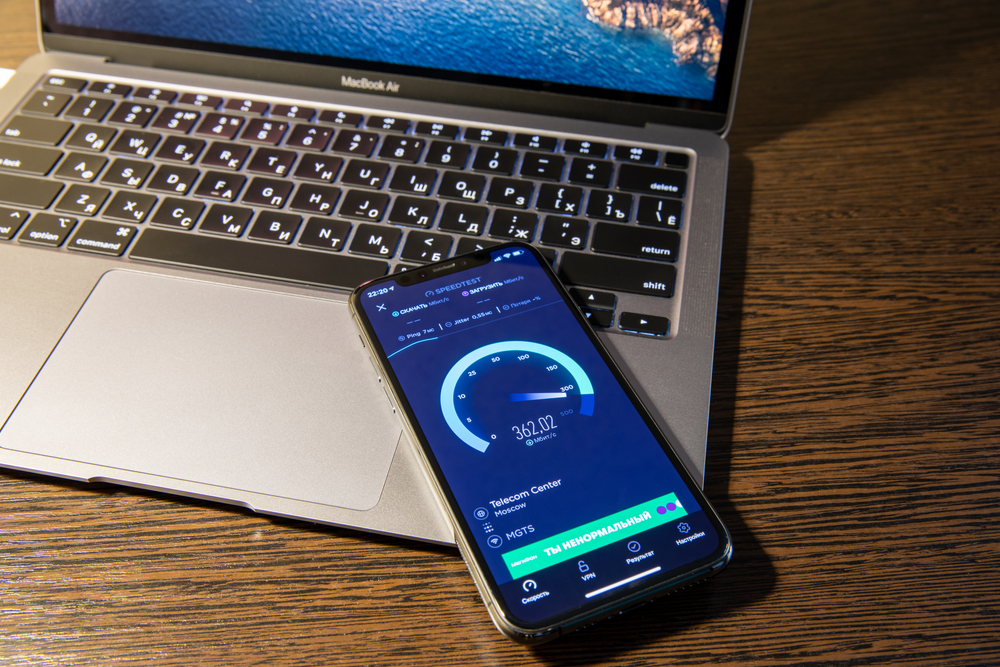
A practical way to check whether ping is the issue is to run a broadband speed test. This test shows your download speed, upload speed, and latency. If latency appears normal but your download or upload speeds are low, the problem may be related to slow speeds rather than delay.
Why Is Ping Important?
In single-player experiences like many of the most underrated ps4 games, you might play offline latency doesn't exist. You press a button, and the action happens instantly on your hardware. But in mobile gaming, every move must be verified by a remote server. When your ping is high, that communication loop breaks, leading to the "rubber-banding" and input delay that ruins competitive matches.
What Causes High Ping?
High ping doesn’t happen randomly. If you’re dealing with lag spikes, delayed shots, rubberbanding, or unstable gameplay, there’s usually a clear reason behind it. Latency issues often come down to distance, congestion, weak signal strength, or bandwidth overload.
Below are the most common causes of high ping in online and mobile gaming.
1. Distance To The Game Server
One of the biggest causes of high latency is physical distance from the gaming server location.
When you play an online game, your data has to travel from your device to the server and back. The farther away the server is, the longer that trip takes. More distance = more milliseconds = higher ping.
For example:
- Connecting to a local server usually gives low ping.
- Connecting to a server in another country often increases latency.
If your game allows you to choose a region, always select the closest server to reduce delay and avoid unnecessary lag.
2. Network Congestion (Too Much Traffic At Once)
Network congestion happens when too many devices or users are using the internet at the same time.
This can happen:
- In your home (multiple people streaming or downloading)
- In your neighborhood (peak evening hours)
- On your ISP’s network
When bandwidth usage is high, your gaming data has to compete with other traffic. This can cause:
- High ping
- Lag spikes
- Packet loss
- Unstable connection
Gaming during off-peak hours or limiting other heavy internet activity can help reduce congestion-related latency.
3. Weak WiFi Signal Or Router Interference
A weak WiFi signal is one of the most common reasons for high ping on mobile devices.
If you’re far from your router, or walls and obstacles are blocking the signal, your connection strength drops. This leads to:
- Higher latency
- Connection instability
- Random lag spikes
Other things that cause WiFi interference:
- Microwaves
- Bluetooth devices
- Thick walls
- Neighboring WiFi networks on the same channel
Improving signal strengthby moving closer to your router or reducing wireless interference can significantly lower ping.
4. Broadband Speed Isn’t Enough For Your Household
Sometimes the issue isn’t just latency, it’s that your internet plan doesn’t provide enough bandwidth for everyone at home.
Online gaming doesn’t require extremely high download speeds, but it does need:
- Stable upload speed
- Low latency
- Consistent connection quality
If multiple people are streaming 4K video, downloading large files, or video calling at the same time, your connection can become overloaded. This increases ping and causes delay during gameplay.
Upgrading your broadband plan or using Quality of Service (QoS) settings on your router can help prioritize gaming traffic.
5. Background Apps And Device Congestion
Your mobile device itself can also cause high ping.
Background apps may be:
- Syncing files
- Updating software
- Using cloud backup
- Downloading content
All of this consumes bandwidth and system resources, which can increase latency and create lag in mobile games.
Closing unnecessary apps and disabling background data for non-essential services can improve network performance and stabilize your ping.
How Can I Test My Ping?
Testing your ping (also called latency) helps you figure out whether lag is caused by high delay, slow internet speeds, or an unstable connection. The goal is to measure how long it takes for data to travel from your device to a server and back, expressed in milliseconds (ms).
Here are the most reliable ways to test it.
1. Run An Online Speed Test
The easiest way to check your ping is by using an online speed test such as Speedtest by Ookla or Fast.com.
When you run a test, you’ll see three main results: download speed, upload speed, and ping (latency). For gaming, ping is the most important number.
As a general guide:
- 0-20 ms feels extremely responsive
- 20-50 ms is still very good
- 50-100 ms is playable but may feel slightly delayed
- Anything over 100 ms usually causes noticeable lag
If your speeds look high but your latency number is also high, then delay, not bandwidth, is likely the issue.
2. Use The Built-In Ping Command (More Accurate)
For a more technical and often more accurate test, you can use your device’s built-in ping tool.
On Windows, open Command Prompt and type: ping google.com
On Mac, open Terminal and run the same command.
This test shows your average latency and whether there is any packet loss. If you see inconsistent times or dropped packets, that can indicate network congestion, WiFi interference, or routing problems.
3. Check Your Ping Inside The Game
Many online and mobile games display real-time network statistics in their settings. This usually shows your live ping to the actual game server you’re connected to.
This is often the most useful reading because it reflects real gameplay conditions, including server distance and routing delays. If your in-game ping is high but speed tests look fine, the issue may be server location or ISP routing rather than your home network.
4. Test At Different Times Of Day
If your ping is low in the morning but increases at night, network congestion is likely the cause. Evening hours are peak usage times when more people are streaming, gaming, and downloading.
Testing multiple times helps you determine whether your high ping is a constant issue or a traffic-related spike.
12 Steps To Lower Ping On WiFi For Mobile Games
Lag, stuttering, and delayed actions during mobile gaming often stem from high ping or unstable WiFi connections. Below is a structured 10-step plan designed to address real-world issues and help you improve gameplay performance.
Step 1: Connect To The Nearest Game Server
One of the simplest ways to reduce latency is by connecting to a server closer to your location. For example, in regional games like BGMI, connecting to the India-specific servers is mandatory for the best performance; choosing a different region can instantly spike your latency from a smooth 20ms to an unplayable 200ms.
If your game allows region switching, always opt for the server geographically closest to you. If you are using a VPN, ensure it isn't routing your traffic through a different country, as this adds thousands of unnecessary miles to your data's journey.
Step 2: Use A Wired Connection When Possible
WiFi is convenient, but it introduces potential interference. Using a wired Ethernet connection or a USB-C Ethernet adapter for mobile devices provides a stable, direct connection.
Wired connections reduce packet loss, eliminate interference from neighboring devices, and often provide a consistent upload and download speed, critical for online gaming. Even if you must game on WiFi, being closer to the router helps.
Tip:Physical connections outperform wireless in stability and low ping.
Step 3: Upgrade To Wi-Fi 6/7 And Use The 5GHz/6GHz Bands
If you are gaming on an older 2.4GHz band, you are competing with microwaves and Bluetooth for "airtime."
- Frequency Matters: Always use the 5GHz or the newer 6GHz (Wi-Fi 6E/7) bands. They offer much higher bandwidth and significantly lower "jitter" than 2.4GHz.
- Hardware Check: If your phone supports Wi-Fi 6 or 7 (standard in flagship phones since 2023), but your router is an old Wi-Fi 5 model, you are leaving performance on the table. A Wi-Fi 6 router uses OFDMA tech, which allows it to handle gaming data packets more efficiently when other devices are active.
Step 4: Restart Your Router Regularly
Routers accumulate temporary issues over time that can increase latency. Restarting clears memory, refreshes network connections, and can resolve temporary congestion.
For best results, perform a quick reboot before your gaming session, especially if your router has been running for several days. Some modern routers also have scheduled automatic reboots.
Step 5: Limit Bandwidth-Heavy Devices And Apps
Other devices in your home using bandwidth can create network congestion, increasing your ping. Streaming 4K video, downloading large files, or video conferencing can all interfere with your mobile gaming connection.
Close unnecessary apps on your phone or tablet. Consider enabling Quality of Service (QoS) on your router to prioritize gaming traffic over less time-sensitive applications.
Step 6: Switch To A Faster DNS Provider
Your ISP’s default Domain Name System (DNS) is often slow and congested. Switching to a gaming-optimized DNS can reduce the "handshake" time between your device and the game server.
- Cloudflare DNS:1.1.1.1 (Widely considered the fastest for gaming).
- Google DNS: 8.8.8.8.
- How to change it:Most modern Android and iOS devices allow you to set a "Private DNS" in your connection settings. Changing this at the device level is faster than waiting for the router to handle the request.
This is critical for fast-paced shooters and even for those playing at the top online casinos, where a millisecond of lag can cause a "live dealer" stream to stutter or a bet to be placed incorrectly during a high-stakes round.
Step 7: Update Router Firmware And Device Software
Outdated software can cause connectivity issues and higher latency. Router firmware updates often improve WiFi stability and compatibility with modern devices.
Likewise, ensure your phone or tablet’s operating system and game apps are updated. Developers often release patches to optimize network performance and reduce lag spikes.
Step 8: Reduce Wireless Interference
WiFi signals are susceptible to interference from microwaves, cordless phones, Bluetooth devices, and even neighboring networks.
Changing your router’s channel, switching to 5 GHz WiFi, or moving away from sources of interference can significantly improve signal quality and reduce ping. Some routers also have automatic channel selection features.
Step 9: Close Background Apps On Your Mobile Device
Mobile devices running multiple apps in the background consume CPU and network resources, which can increase latency during gaming.
Force close unused apps, pause automatic updates, and disable background data for non-essential apps. This ensures your device dedicates as much bandwidth and processing power as possible to your game.
Step 10: Disable Power Saving And Auto-Sync
Mobile operating systems often "throttle" (slow down) the network chip to save battery life. If your phone is in Low Power Mode or Battery Saver, it may increase latency to reduce energy consumption.
- Turn off Power Saving:Ensure your device is in "High Performance" or "Gaming Mode" if available (e.g., Samsung Game Booster or iOS Game Mode).
- Disable Auto-Sync:Features like iCloud Photo Library, Google Photos backup, or App Store auto-updates can trigger a massive upload in the middle of a match, causing a sudden "ping spike." Turn these off before you start a competitive session.
Step 11: Use A Gaming VPN If Necessary
Sometimes high ping is due to poor routing from your ISP to the game server. A reputable gaming VPN can reduce latency by providing a more direct route.
Choose a VPN with servers close to your game’s server and low overhead. Avoid general-purpose VPNs that can slow down your connection.
Step 12: Upgrade Your Internet Plan Or Hardware
If you’ve tried all the above and still experience high ping, your broadband speed or router may be the limiting factor.
Look for plans with higher upload speeds and lower network congestion, or invest in a gaming-focused router designed to handle multiple devices and prioritize low-latency traffic.
Check Your Phone Case
It sounds simple, but thick "rugged" cases or those containing metal/Magnets (like some MagSafe-compatible ones) can act as a shield, weakening the internal Wi-Fi antenna's ability to grab a signal. If you're experiencing "unexplained" lag while sitting near the router, try removing your case to see if your ping drops.
People Also Ask
How Do I Reduce Ping For Gaming WiFi?
Using WiFi instead of a wired connection can increase ping. Walls, distance from the router, and interference from other devices can all weaken your WiFi signal. A weak signal makes data take longer to send and receive, which can cause delays. Using an Ethernet cable is often the best way to reduce ping.
Is 200ms Ping Good Or Bad?
50-100 ms: Good - Generally acceptable for most games. 100-150 ms: Fair - Playable, but you might notice some delays. 150-200 ms: Poor - Noticeable lag and delays, which can be frustrating. Above 200 ms: Bad - Significant lag, making fast-paced gaming difficult.
Is 0 Ping Possible?
A ping of 0 is actually not possible in Fortnite. However, you might see 0 ping if you live close to a Fortnite server and you have fast internet. This is due to Fortnite rounding your ping down to 0, or it may be displaying a false ping. Use the command line to check your ping to Fortnite's servers.
How Does Server Location Affect Ping?
The farther your device is from the game server, the higher the latency. Connecting to a server geographically close reduces round-trip time, lowers ping, and prevents lag spikes caused by long-distance data travel.
Final Thoughts
High ping can make mobile gaming frustrating, but most causes are easy to fix. By tackling WiFi interference, server distance, background apps, and network congestion, you can lower latency and reduce lag.
Applying these strategies will give you faster response times, smoother gameplay, and less frustration, so you can focus on playing at your best rather than waiting for delayed actions.